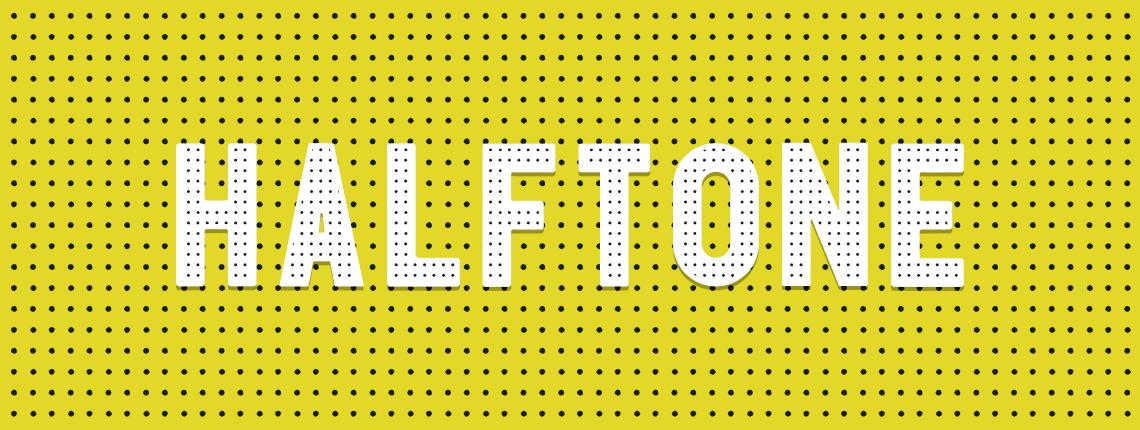
How to Make a Distressed Halftone Pattern in Illustrator
Create a halftone pattern from scratch
There are many different techniques to create a halftone effect in illustrator, but most of them requires to have an image or a grayscale object before start creating the halftone effect. In this tutorial you will learn how to create a halftone pattern from scratch using only Illustrator native tools and distortion effects. We will see how to distort an element using 3 different techniques and then create a seamless pattern out of it.
Step 1
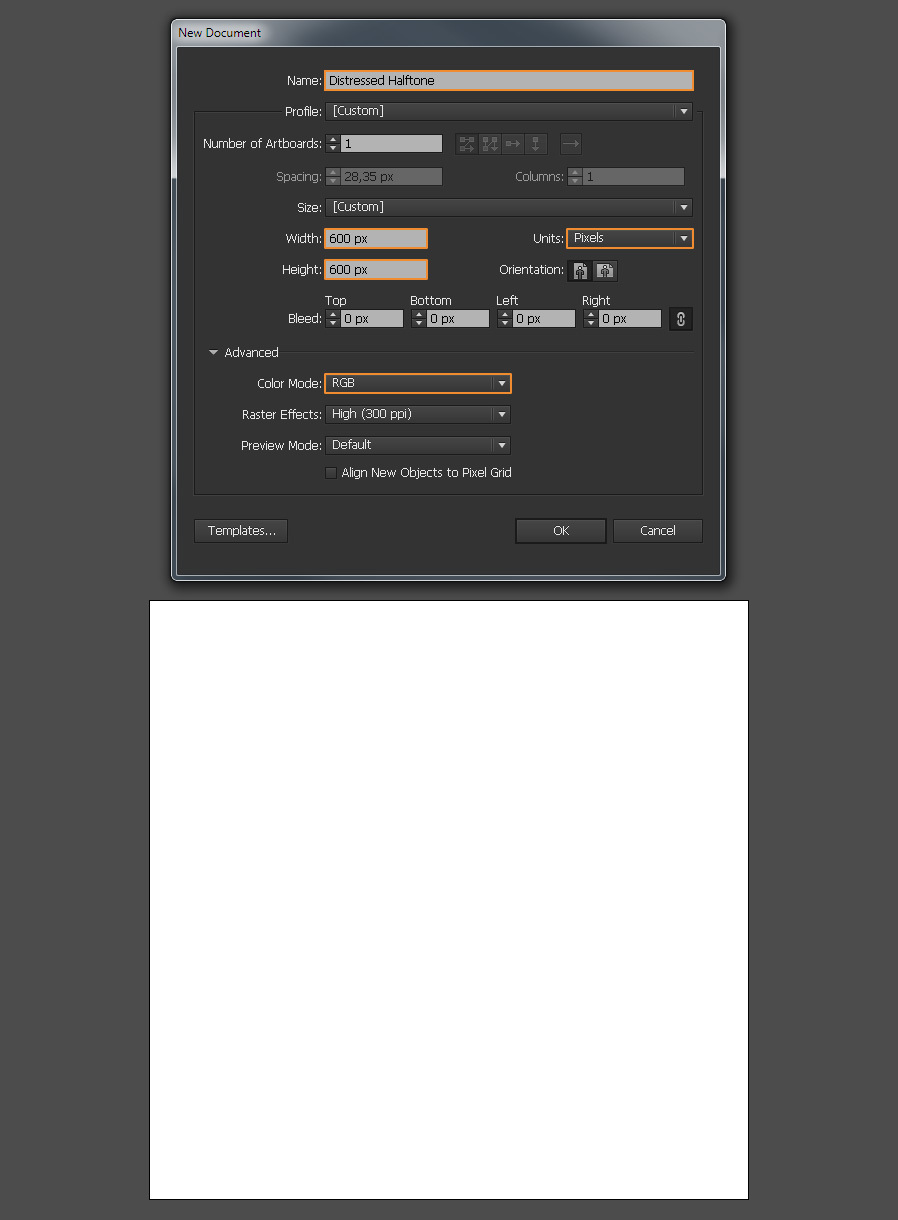
Open Illustrator and make a new 600 x 600 px file.
Step 2
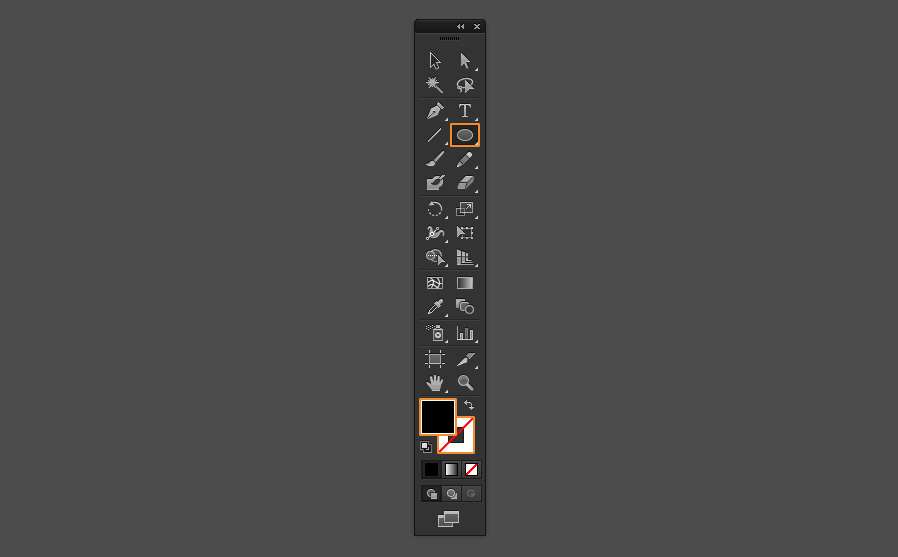
Select the Ellipse Tool (L) and be sure to have the Fill set to #000000 and the Stroke to none.
Step 3
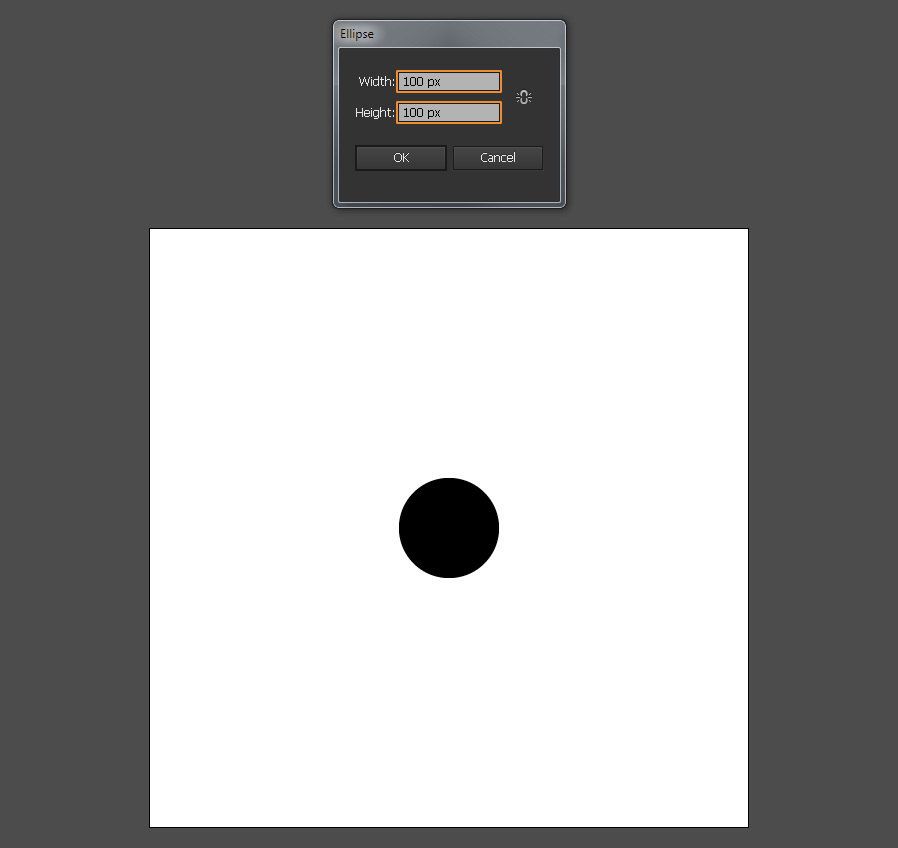
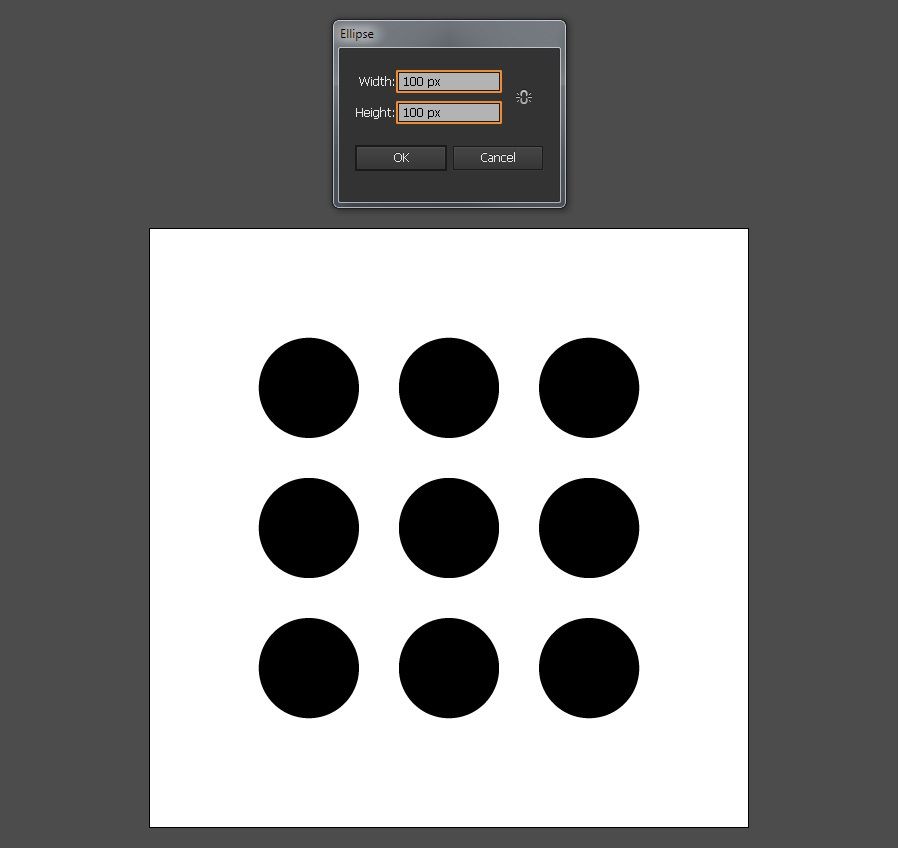
With the Ellipse Tool selected click once over the canvas, set the new circle size to 100 x 100 px and click OK.
Step 4
Following the same procedure, make another 8 circles.
Step 5
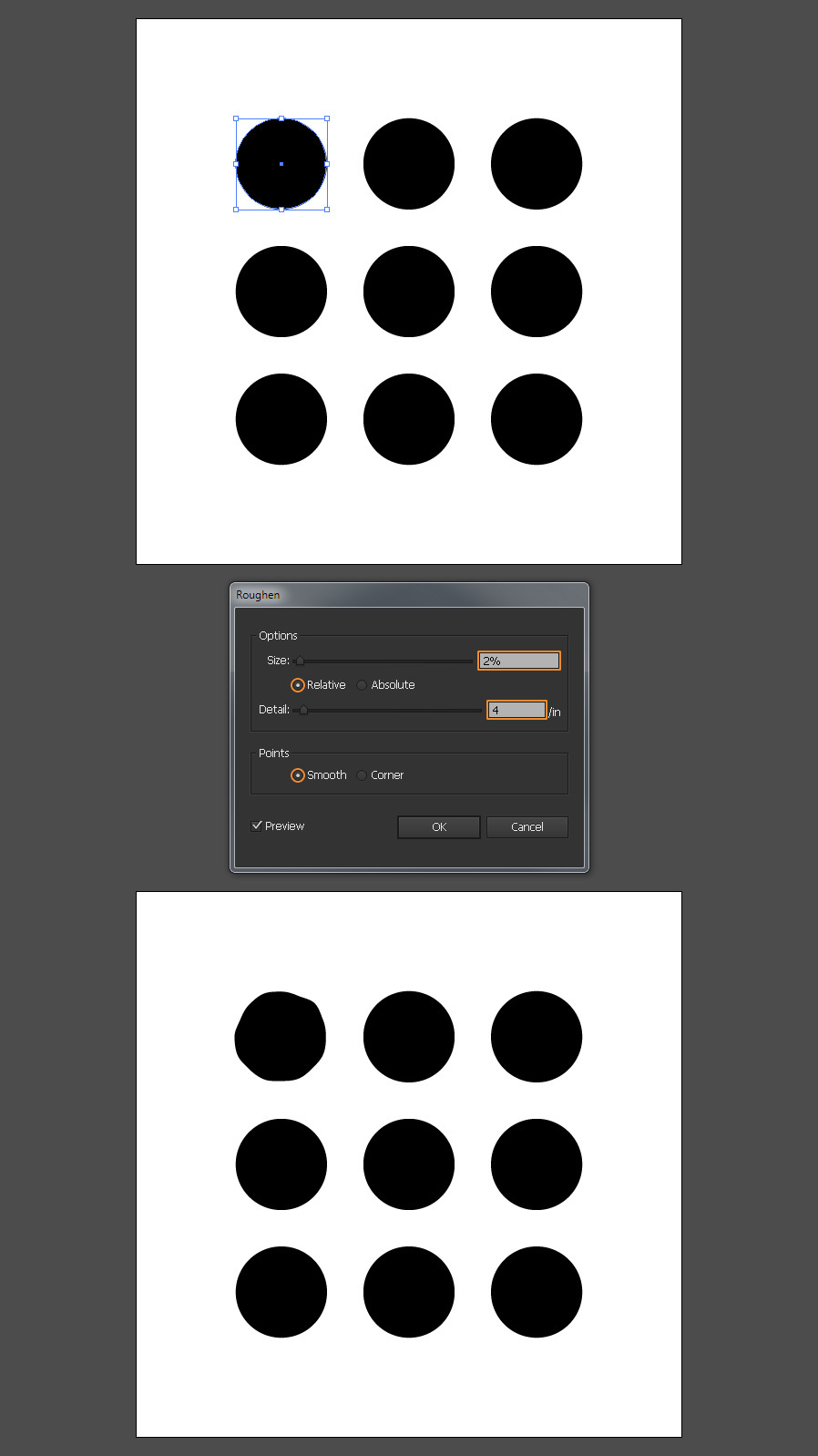
Select the first circle and go to Effect > Distort & Transform > Roughen. Apply the following settings and click OK.
Step 6
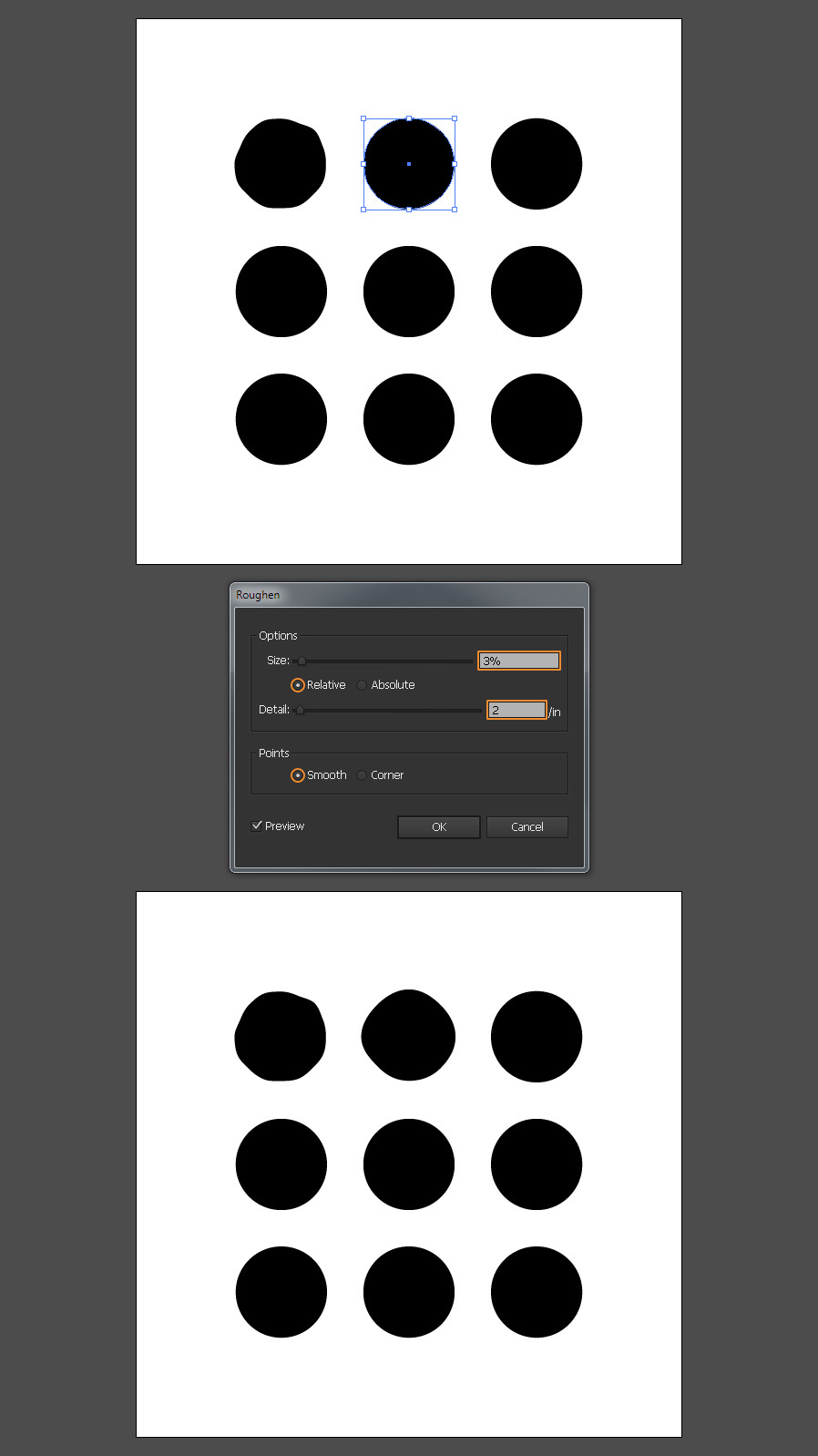
Select the second circle and again go to Effect > Distort & Transform > Roughen. Apply the following settings and click OK.
Step 7
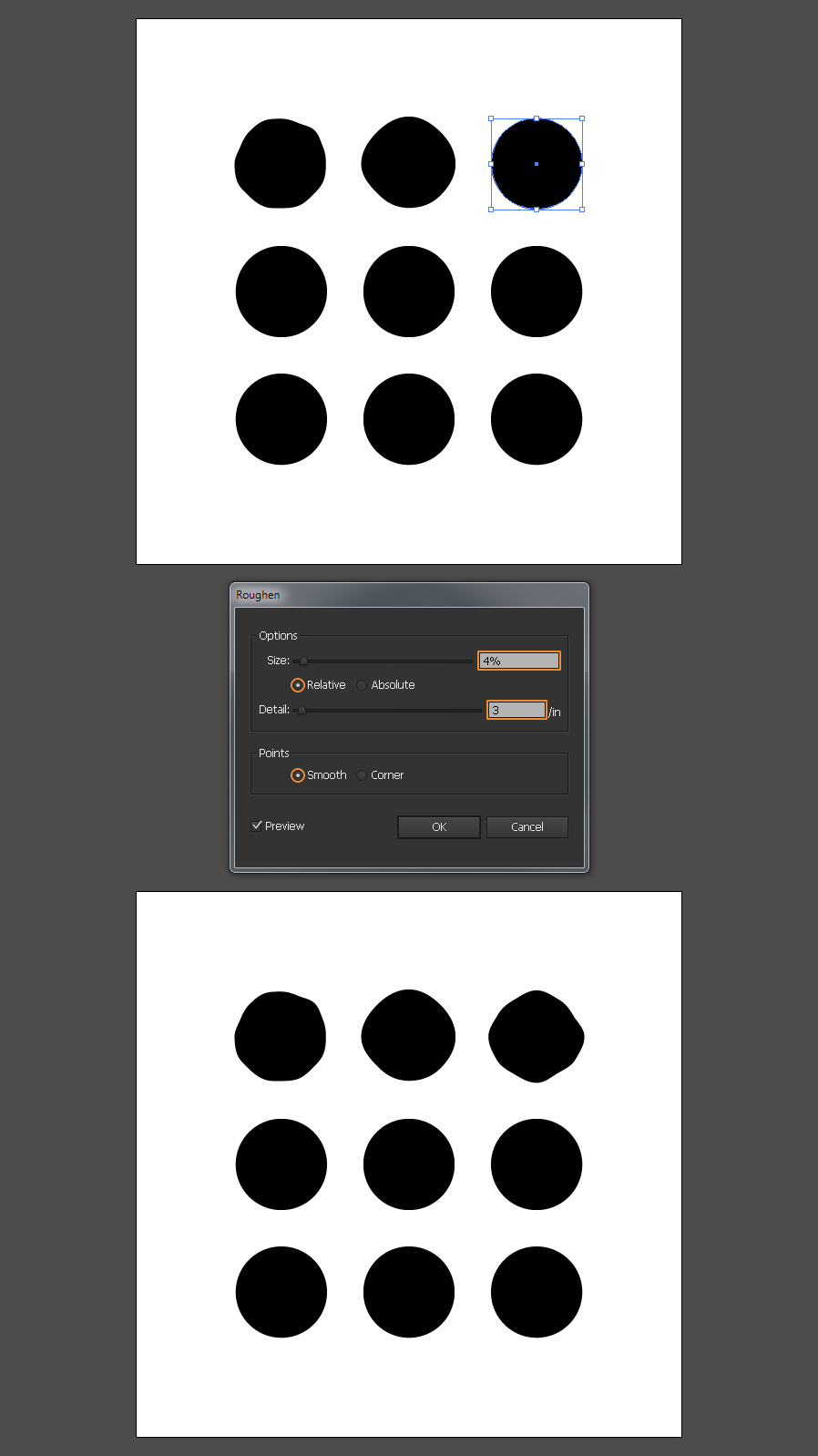
Select the third circle and one more time go to Effect > Distort & Transform > Roughen. Apply the following settings and click OK.
Step 8
Select the forth circle and go to Effect > Distort & Transform > Tweak. Apply the following settings and click OK.
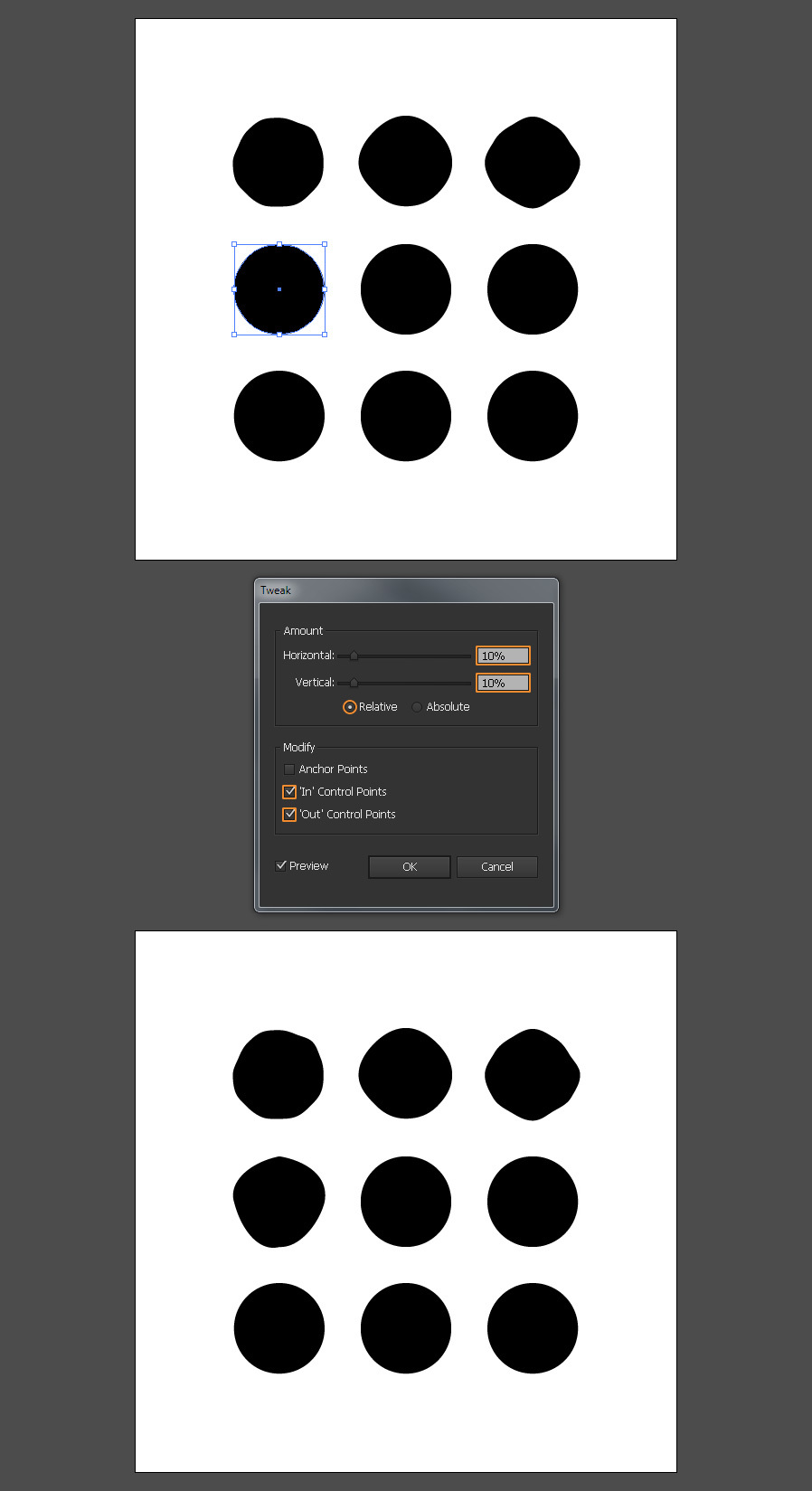
Step 9
Now select the fifth circle and again go to Effect > Distort & Transform > Tweak. Apply the following settings and click OK.
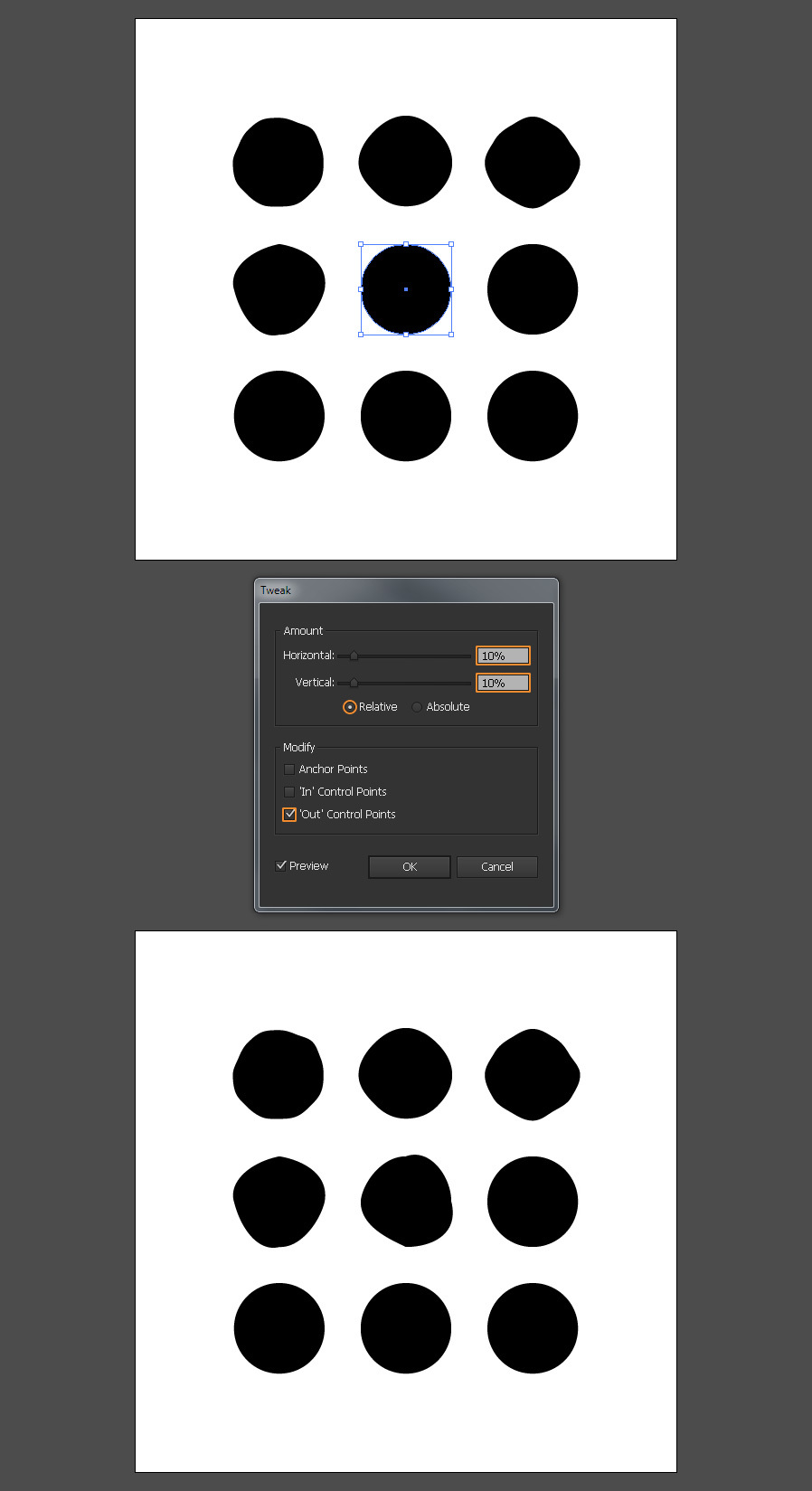
Step 10
Select the sixth circle and one more time go to Effect > Distort & Transform > Tweak. Apply the following settings and click OK.
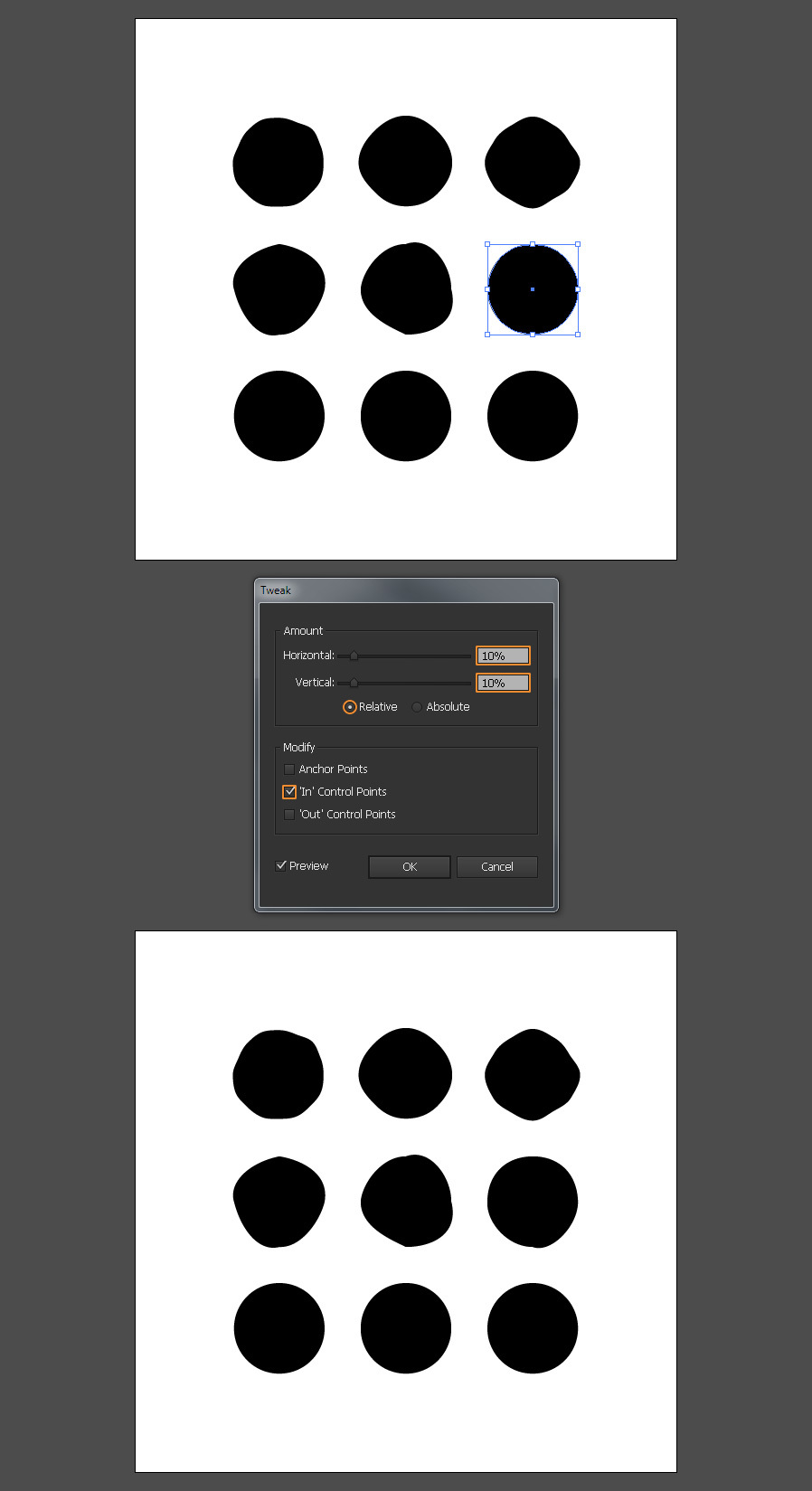
Step 11
Select the seventh circle and pick the Warp Tool. Click and drag over the circle to freely distort it.
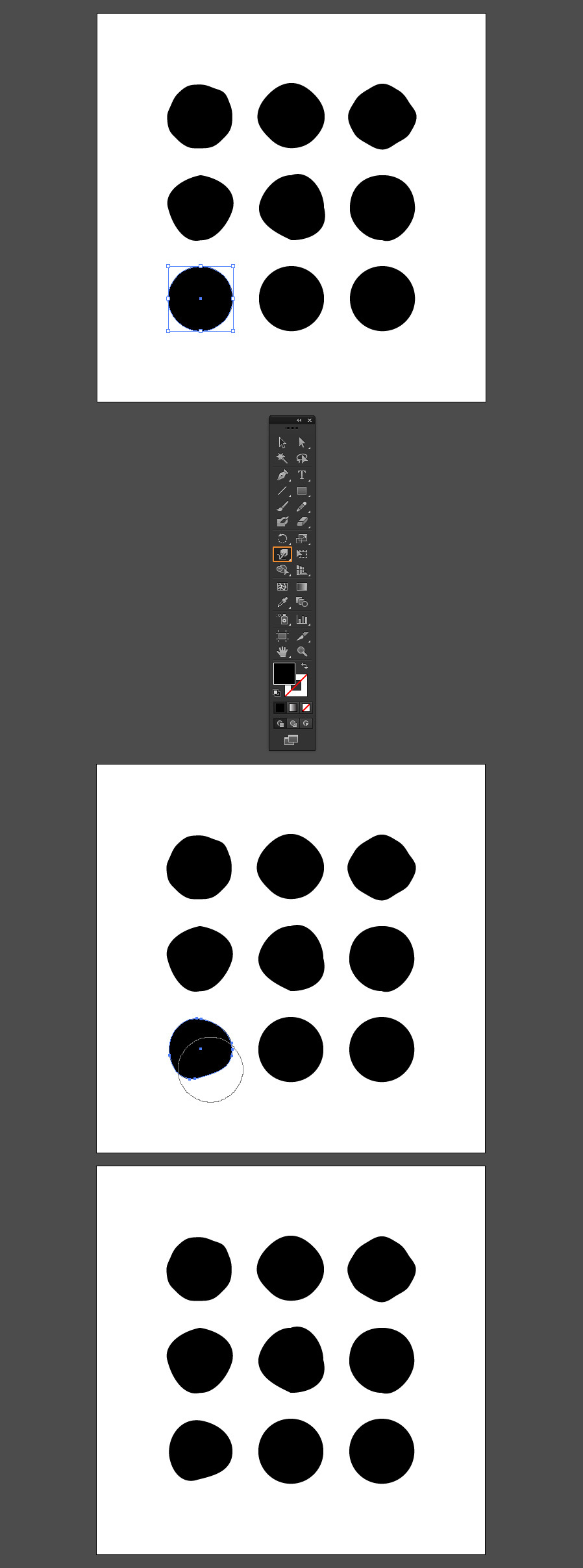
Step 12
Select the eighth circle. Again using the Warp Tool click and drag over the circle to freely distort it.
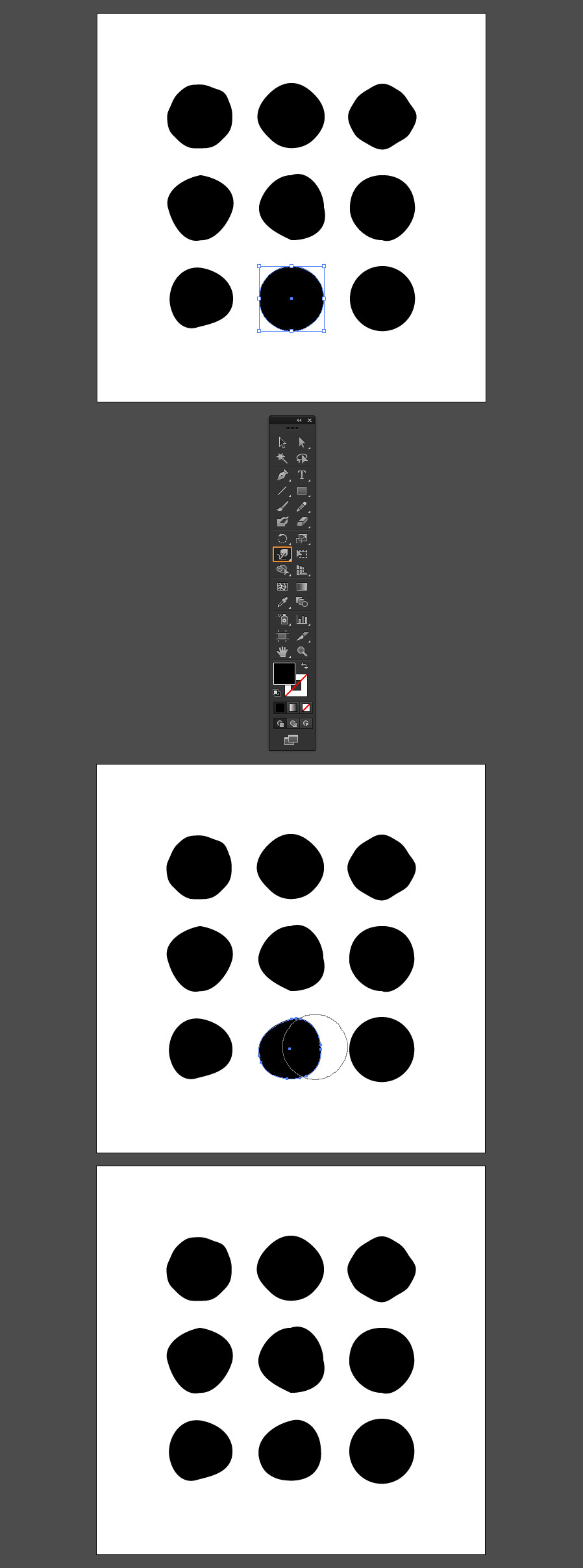
Step 13
Finally, select the ninth circle. One more time, using the Warp Tool click and drag over the circle to freely distort it.
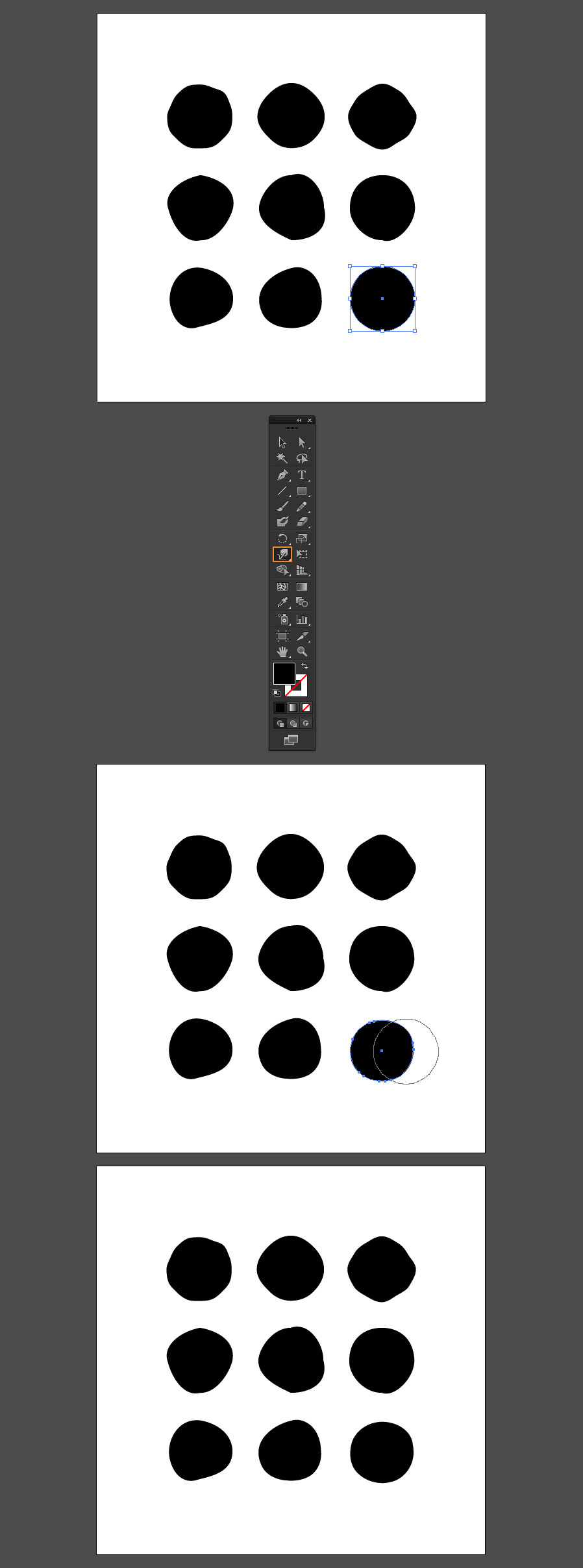
Step 14
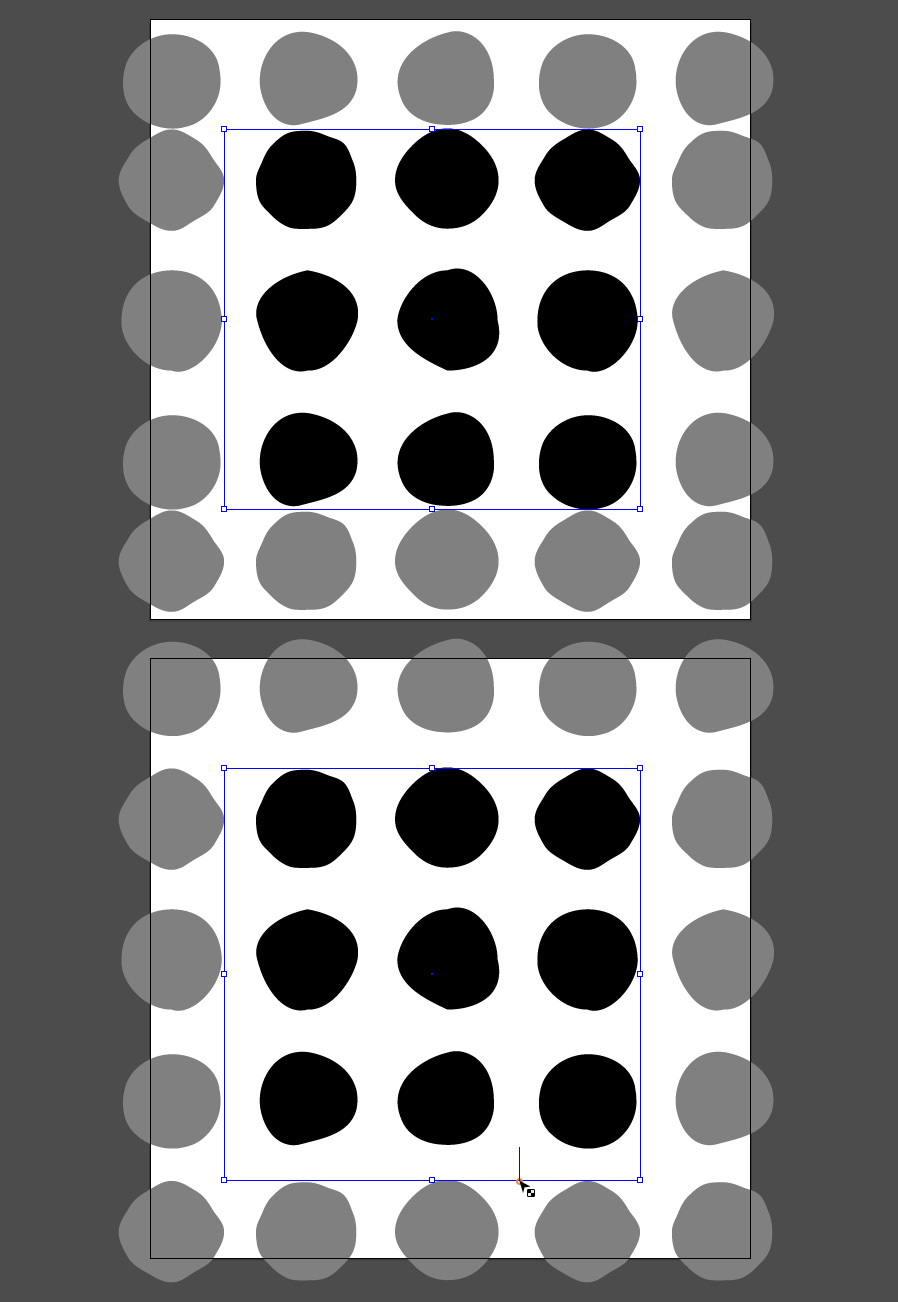
Select all the modified circles and go to Object > Pattern > Make. In the Pattern Options Panel, click on the “Pattern Tile Tool” icon.
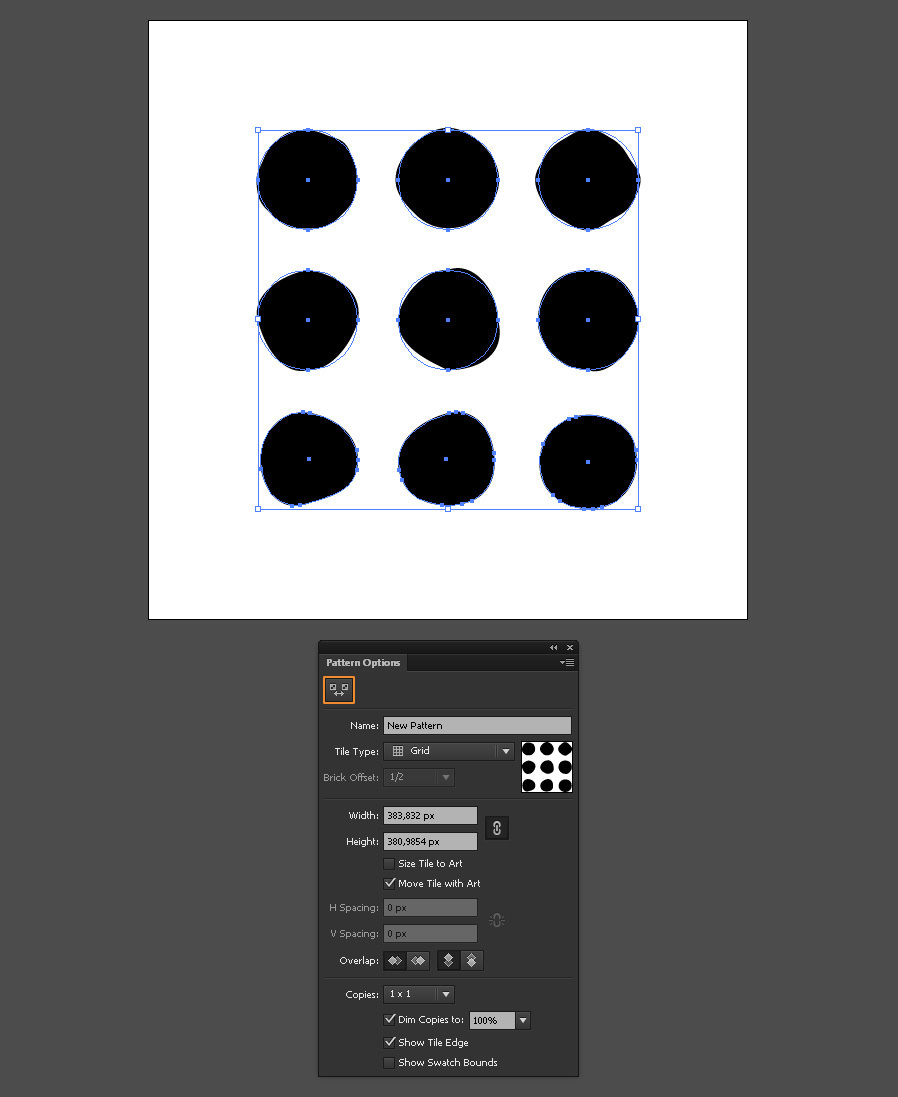
Step 15
Click and drag over the left line of the bounding box until you see the circles are evenly spaced.
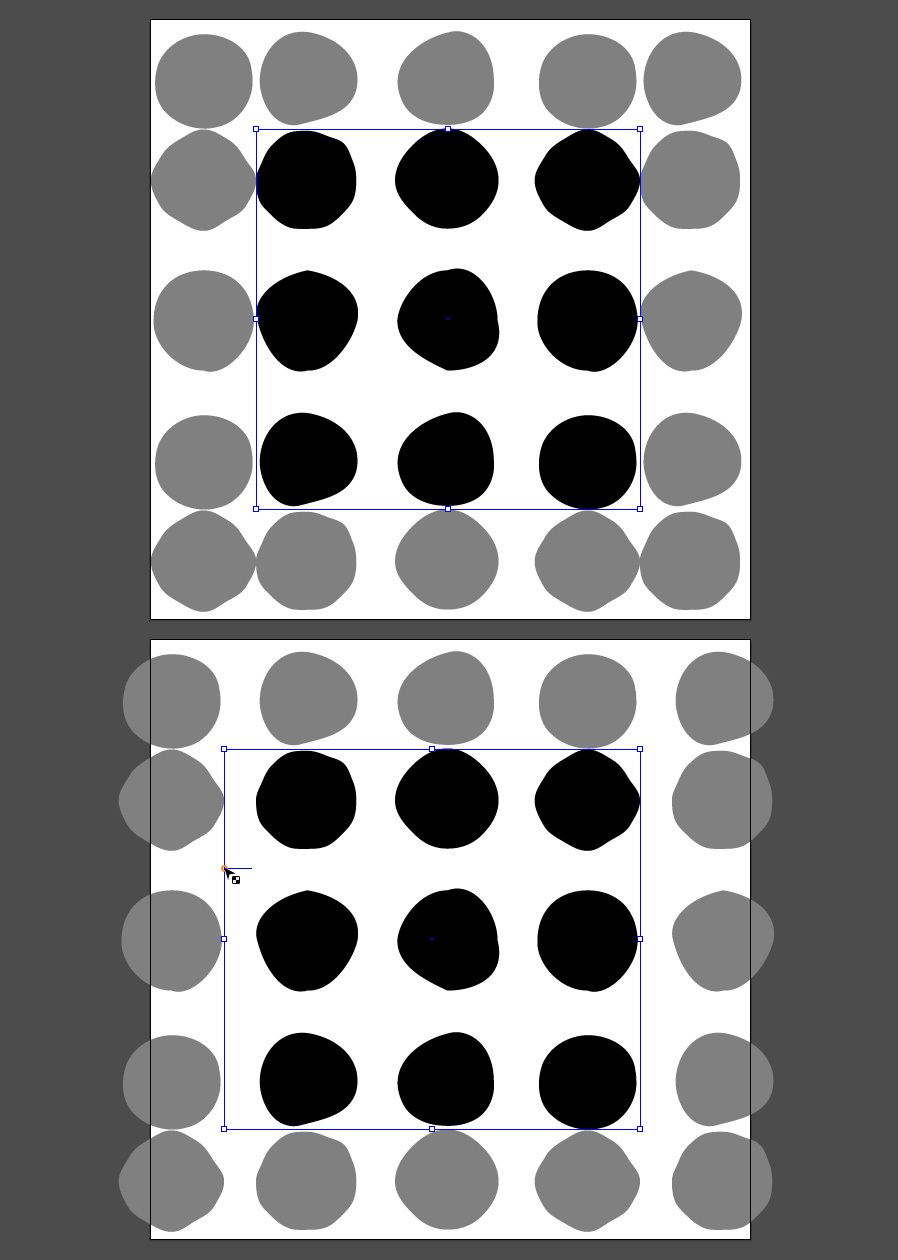
Step 16
Now click and drag over the bottom line of the bounding box until you see the circles are evenly spaced.
Step 17
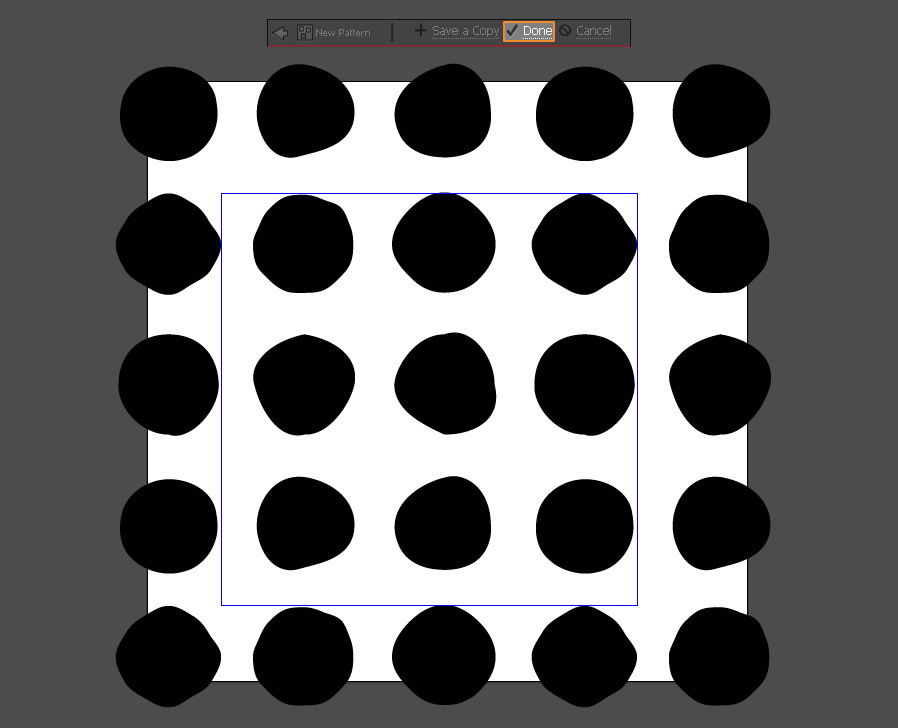
Click the “Done” button in the top toolbar.
Step 18
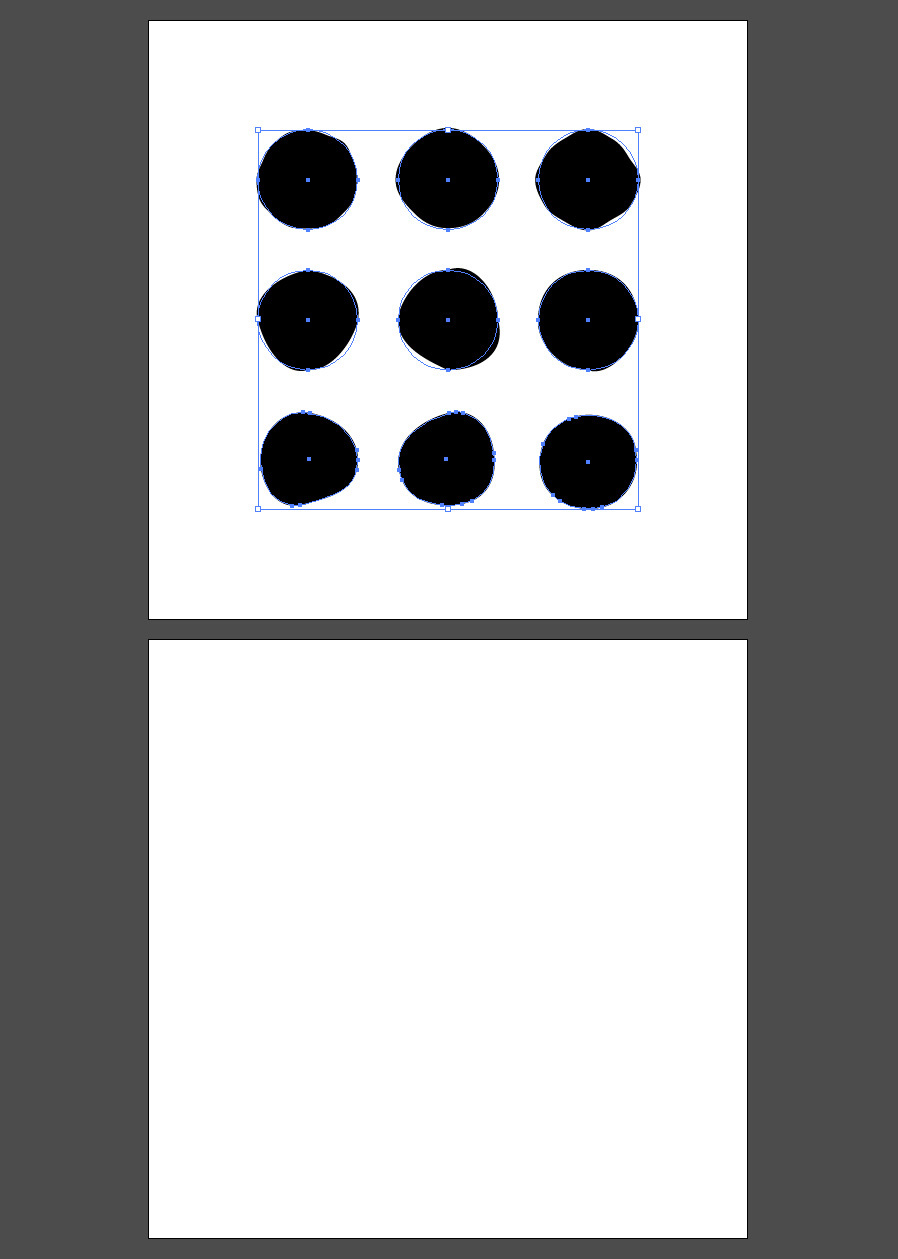
Select and delete all the elements.
Step 19
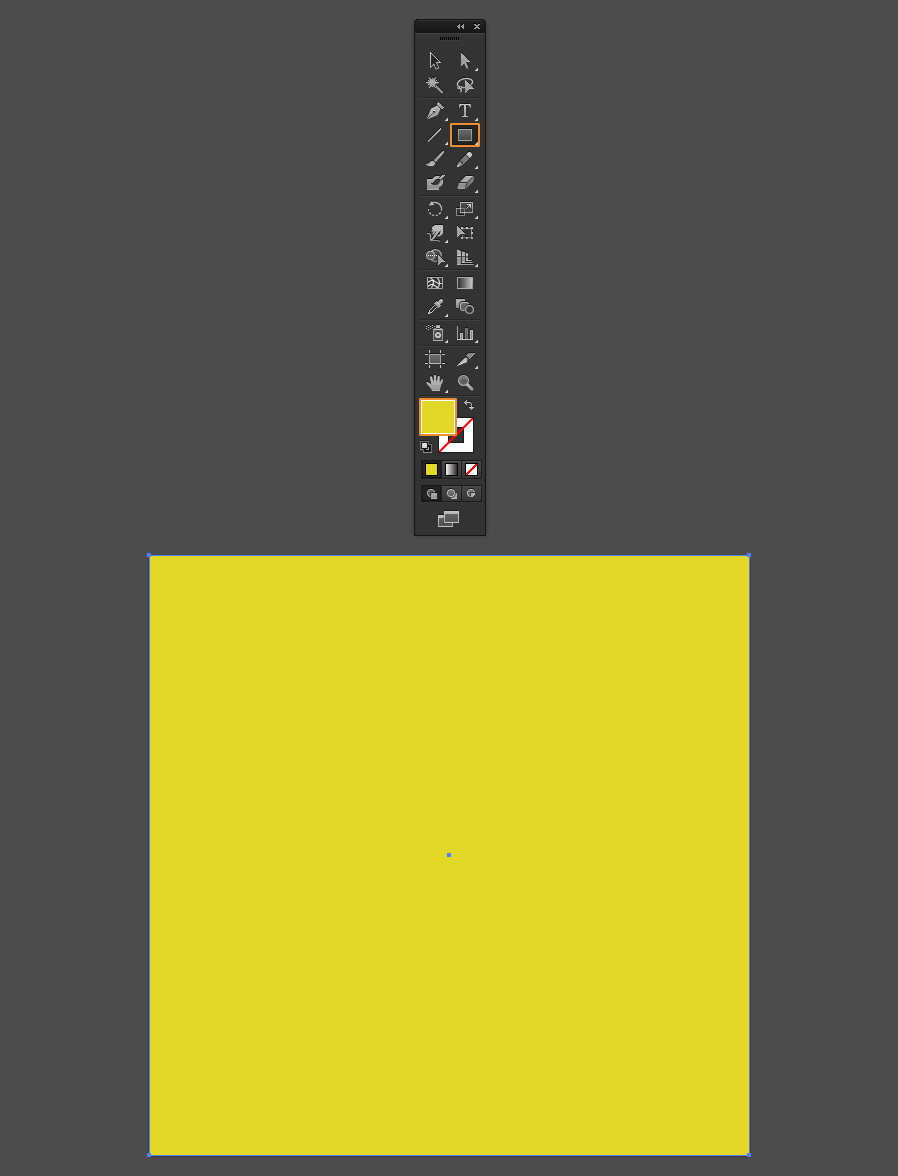
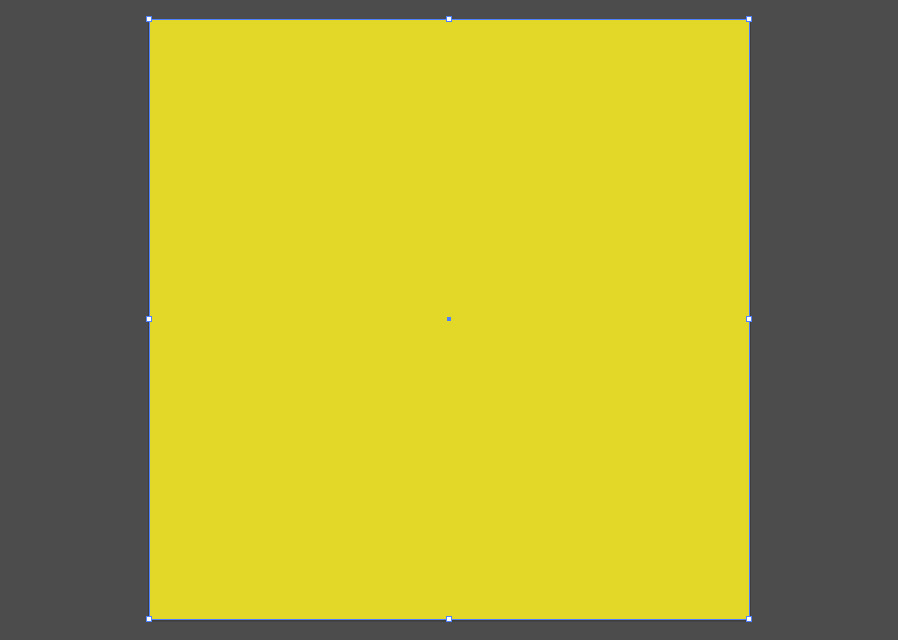
Set the Fill Color to #e2d827 and make a new 600 x 600 px square.
Step 20
Copy (Ctrl+C) and Paste (Ctrl+F) the new square.
Step 21
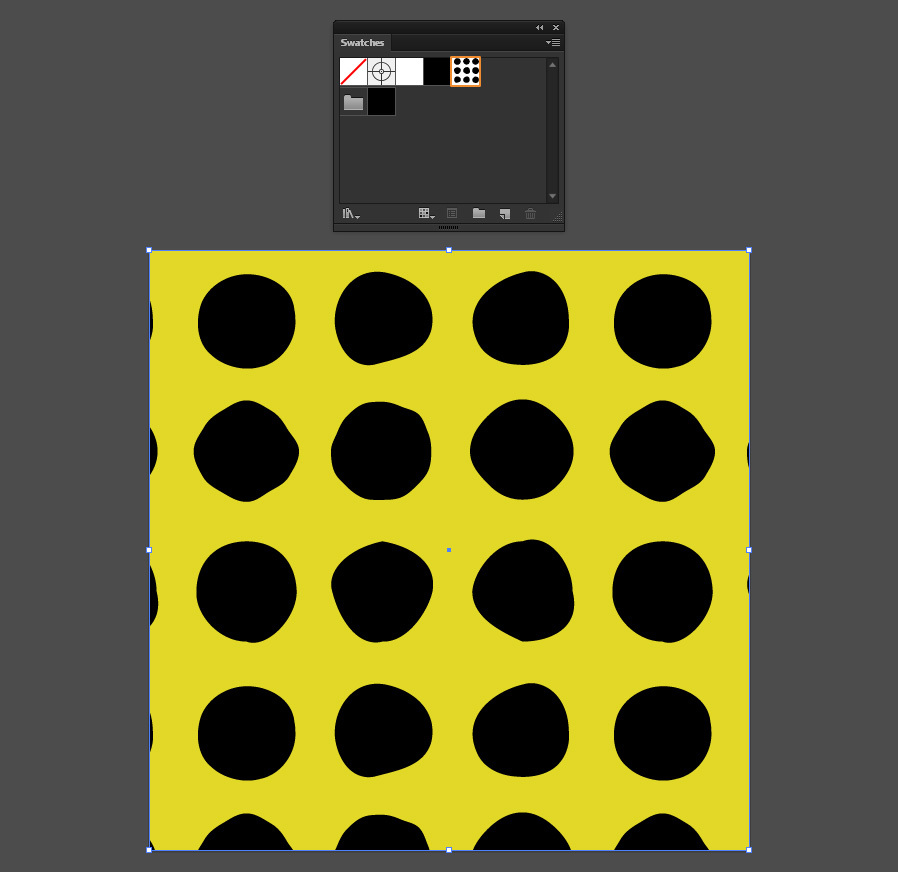
Go to Window > Swatches. Click on the new created pattern to apply it to our front square.
Step 22
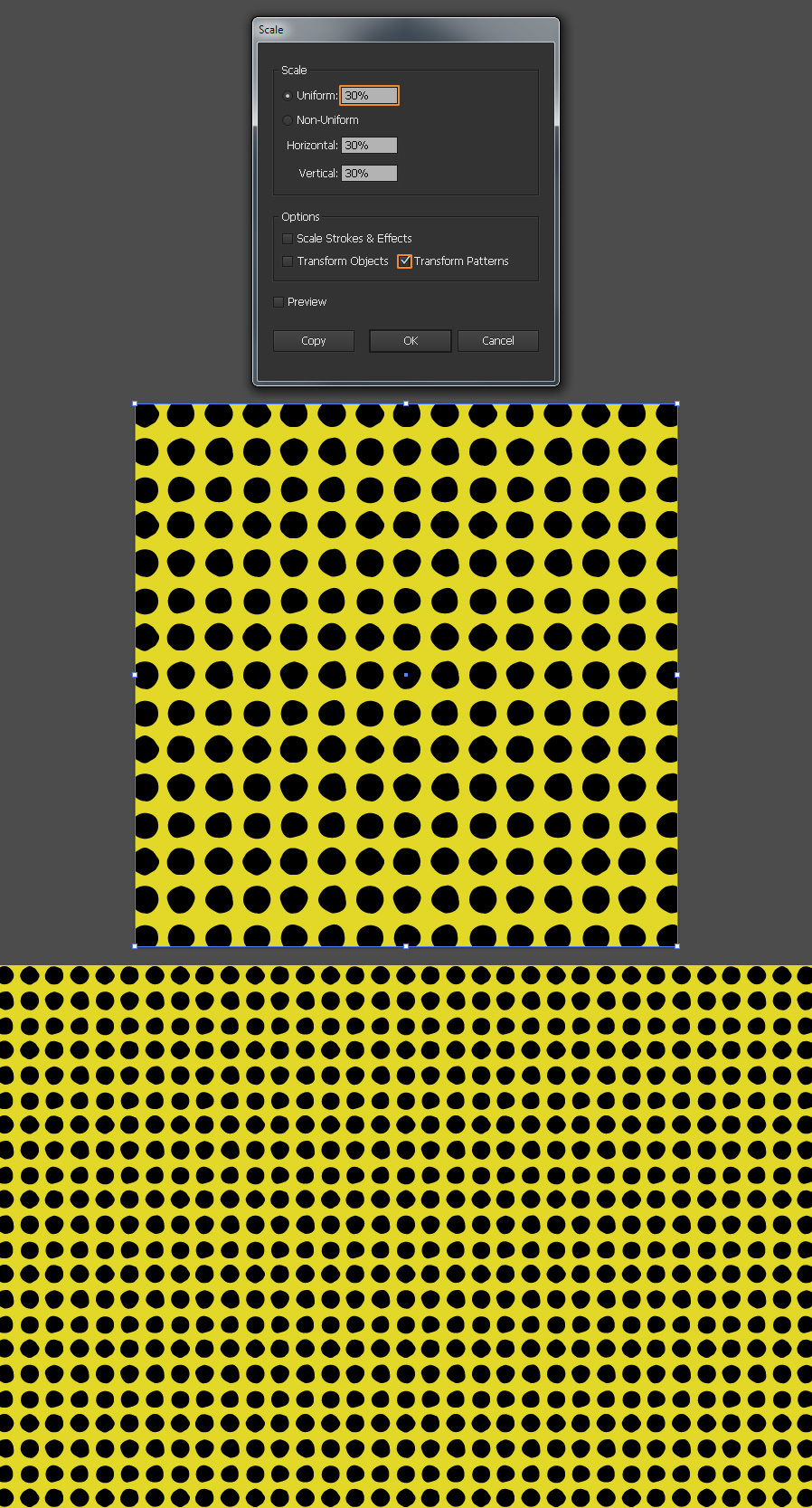
Right click over the square and from the dropdown menu choose Transform > Scale. Set the Scale to 30% (or any other percentage you want), be sure to only check the Transform Patterns option and click OK.
Some Final Notes
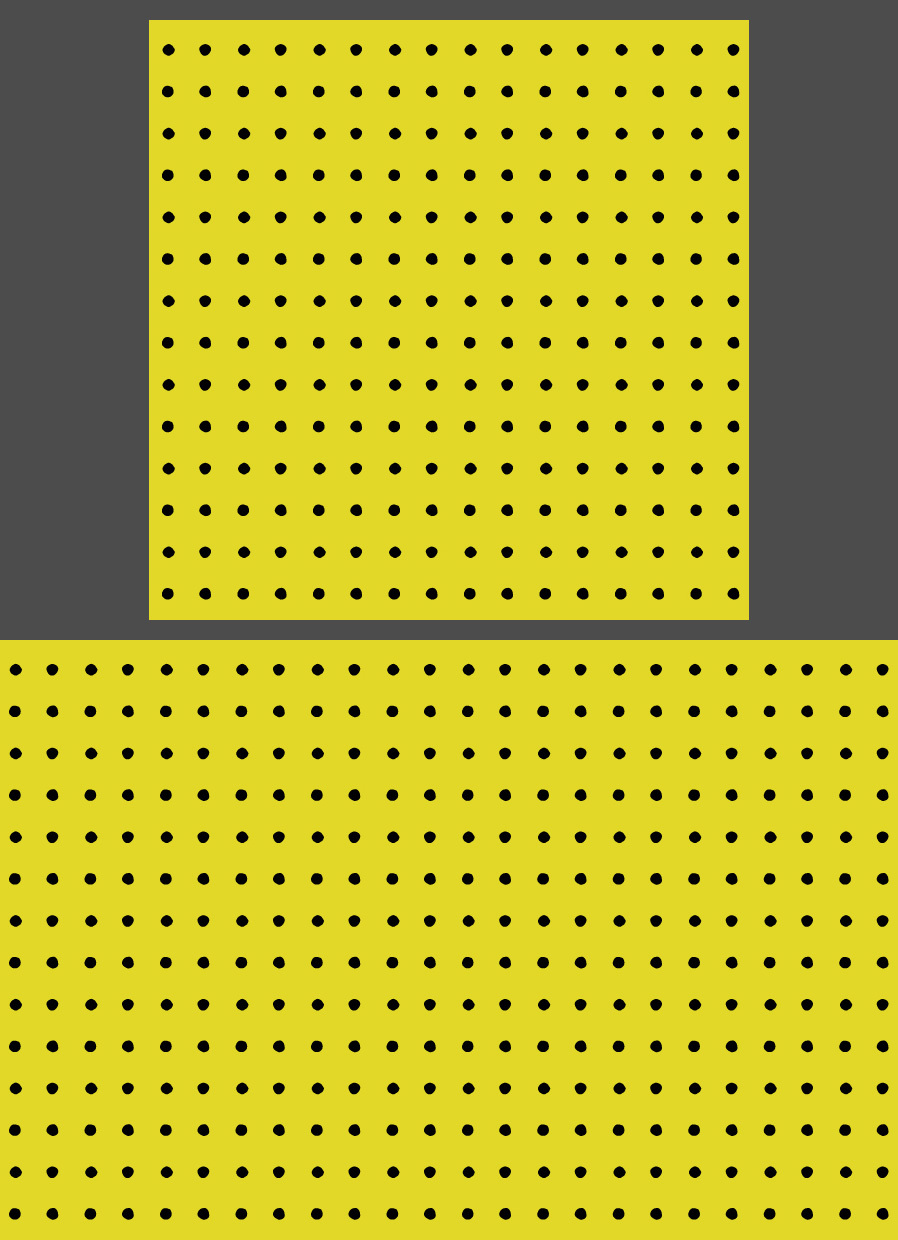
There are many different types of halftone patterns that you can make following these simple steps. In the following example you can see a pattern made using this method, but with smaller and more spaced circles, and if you wish to change the pattern color, simply double click on the pattern in the Swatches Panel, edit the colors and click Save. All the changes will be applied to your pattern and updated in the Swatches Panel.
More from Tutorials

How to Make Light Leaks From Images in Photoshop
Tutorialsby Diego Sanchez
Light leaks can instantly add warmth, depth, and a cinematic feel to your images, and creating them in Photoshop is much easier than you might think. In this tutorial, we’ll transform ordinary images into beautiful light leak overlays using just a few simple tools like Blur, Contrast adjustments, and the Liquify filter. By manipulating colors and shapes, you can craft soft gradients of light that bring a nostalgic, film-inspired atmosphere to your photos. Whether you want to enhance portraits, add flair to design projects, or create dreamy lighting effects, this method gives you full control over the final look in just a few minutes.
Read more
Enhance Autumn Colors in Lightroom with Ease
Tutorialsby Diego Sanchez
Enhancing the warm and vibrant tones of autumn photography is easier than it seems with just a few simple adjustments in Lightroom. By carefully refining exposure, boosting contrast, and enhancing the reds, oranges, and yellows, you can transform any fall image into a rich and captivating scene. Using only Lightroom’s basic tools along with the Color Mixer and Color Grading panels, you’ll bring out the full beauty of autumn landscapes with ease.
Read more
Easily Add a Twilight Mood to Your Photos in Lightroom
Tutorialsby Diego Sanchez
Give your photos a mystical touch by transforming ordinary daylight or sunset shots into captivating twilight scenes. By combining simple adjustments with precise tweaks in the Color Mixer, enhancing tones with Color Grading, and adding a delicate layer of Grain, it’s possible to achieve a soft, cinematic glow. These subtle yet impactful edits can shift the mood of your images, creating a serene, atmospheric look that feels like the perfect blue hour moment.
Read more
How to Create an Editable Soft Glow Text Effect in Illustrator
Tutorialsby Diego Sanchez
Creating eye-catching visual effects in Illustrator doesn’t always require complex tools or multiple layers. Sometimes, a single feature—used creatively—can deliver stunning results. Today, I’ll show you how to create a soft glow text effect using nothing but the Appearance Panel in Illustrator. Thanks to its non-destructive structure, you’ll be able to edit your text at any time without losing the effect, making it perfect for experimenting with different styles, colors, and typefaces without starting over.
Read more